DNX Mode on Android Devices: What It Means and How Businesses Can Reduce the Risk

Businesses today rely on Android devices for far more than emails and phone calls. They process payments, scan inventory, collect signatures, manage deliveries, support field workers, and run customer-facing kiosks. When even a handful of these devices stop working, operations can slow down almost immediately.
One issue that sometimes catches IT teams by surprise is the message "entering dnx mode waiting for fastboot command." While many online guides explain how to exit this screen on a personal phone, businesses have a much bigger concern. They need to stop the problem from happening across hundreds or even thousands of devices.
That is where a proactive management strategy becomes far more valuable than a one-time fix.
In this article, you'll learn what entering dnx mode waiting for fastboot command means, why it causes downtime for organisations, and how Mobile Device Management (MDM) helps prevent, manage, and recover affected Android devices.
What Does "Entering DNX Mode Waiting for Fastboot Command" Mean?
The message entering dnx mode waiting for fastboot command usually appears when an Android device enters a low-level boot environment instead of starting the operating system normally.
DNX stands for Download and Execute mode. It has historically been used on certain Intel-based Android devices during firmware recovery or software flashing. When a device enters this state, it waits for instructions from a computer through Fastboot instead of loading Android.
Unlike normal startup, users cannot access business applications, company data, or work tools while the device remains in DNX Mode.
Although the exact behaviour depends on the device manufacturer, this screen generally indicates that the normal boot process has been interrupted.
For an individual user, this may simply be frustrating.
For a business managing hundreds of Android devices, it can quickly become an operational problem.
Why Does DNX Mode Appear?
Several situations can trigger entering dnx mode waiting for fastboot command, including:
- Interrupted operating system updates
- Corrupted firmware
- Failed software modifications
- Bootloader problems
- Hardware faults
- Incorrect recovery procedures
- Accidental key combinations during startup
Some businesses unintentionally create these risks themselves.
For example, employees may attempt to troubleshoot devices without approval, install unofficial software, or change developer settings. Even something as simple as an interrupted update due to low battery or unstable connectivity can leave a device unable to boot correctly.
The result is the same.
The employee cannot use the device until someone restores it.
Why DNX Mode Is a Bigger Problem for Businesses
A single device failure may not seem serious.
However, organisations often manage hundreds or thousands of Android devices spread across multiple locations.
Imagine:
- Delivery drivers unable to receive routes
- Retail staff unable to scan products
- Warehouse workers unable to update inventory
- Healthcare staff unable to access patient information
- Field technicians unable to submit work reports
Each unavailable device creates delays that affect customers, employees, and revenue.
The real cost is rarely the repair itself.
It is the lost productivity while waiting for IT support.
Common Business Situations Where DNX Mode Causes Downtime
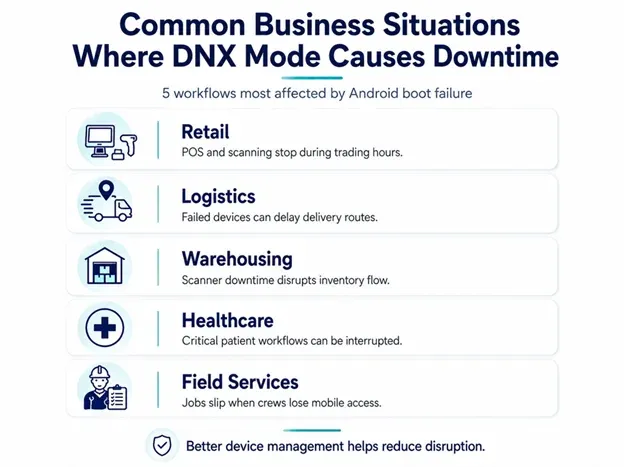
Many industries rely heavily on Android hardware.
Retail
Point-of-sale devices, barcode scanners, and stock management tablets must remain operational throughout trading hours.
A device stuck on entering dnx mode waiting for fastboot command may prevent staff from completing customer transactions.
Logistics
Drivers depend on Android devices for navigation, proof of delivery, and communication.
A failed boot can delay deliveries across an entire route.
Warehousing
Inventory accuracy depends on continuous barcode scanning.
If multiple scanners fail after an interrupted software update, warehouse productivity can fall quickly.
Healthcare
Hospitals and clinics increasingly use Android devices for patient records and medication tracking.
Unexpected downtime can interrupt critical workflows.
Field Services
Engineers often rely entirely on mobile devices for schedules, manuals, customer signatures, and reporting.
Without working devices, jobs may need to be rescheduled.
Why Simply Fixing the Device Is Not Enough
Many online tutorials explain how to recover devices using Fastboot commands or firmware flashing.
These methods may solve the immediate issue.
However, they do not answer the bigger question.
How do businesses stop this from happening repeatedly?
Manual recovery creates several challenges:
- Every device requires individual attention.
- Employees remain idle while waiting.
- Travel may be required to collect affected devices.
- Recovery steps vary between manufacturers.
- Human error can make the situation worse.
Large organisations need prevention rather than repeated repairs.
How Mobile Device Management Reduces the Risk
A strong mobile device management solution gives IT administrators much greater control over Android devices before problems occur.
Instead of reacting after devices fail, administrators can reduce the likelihood of devices entering unstable states.
Here are some of the most important ways MDM helps.
1. Manage Operating System Updates Carefully
Many boot issues begin after interrupted or poorly timed software updates.
An MDM platform allows IT teams to:
- Schedule updates outside business hours
- Test updates before wider deployment
- Roll out updates in stages
- Monitor update success rates
- Delay unsupported releases
This reduces the chance of widespread failures after major Android updates.
2. Restrict Risky Device Settings
Employees usually do not need access to:
- Developer Options
- Bootloader settings
- USB debugging
- System modification tools
An Android MDM solution can prevent users from changing these settings, lowering the risk of accidental boot problems.
3. Prevent Unauthorised Changes
Some boot failures happen after unofficial apps or firmware modifications.
MDM policies help organisations:
- Block unknown app installations
- Restrict APK sideloading
- Disable unnecessary permissions
- Prevent unauthorised configuration changes
The fewer opportunities users have to alter system software, the lower the chance of devices entering recovery modes.
Introducing VantageMDM for Android Device Protection
When organisations operate hundreds or thousands of Android devices, prevention becomes much more valuable than repair.
VantageMDM helps businesses reduce Android downtime through centralised device management, policy enforcement, remote monitoring, and structured recovery workflows.
Instead of waiting until devices fail, IT administrators can proactively secure endpoints, standardise configurations, and reduce risky user actions.
This creates a more stable Android environment across the organisation.
Monitor Device Health Before Problems Grow
Many boot issues begin with warning signs.
Battery problems, storage shortages, repeated crashes, or failed updates often appear before devices become unusable.
With VantageMDM, administrators can monitor fleet health from a central dashboard and identify devices that require attention before they experience more serious failures.
Early intervention often prevents larger outages later.
Lock Down Devices for Business Use
Many frontline workers only need one or two business applications.
Allowing unrestricted access increases unnecessary risk.
Using Android Kiosk Mode, businesses can lock devices into approved applications while hiding unnecessary settings and features.
This reduces opportunities for employees to accidentally change system configurations or access recovery functions they should never use.
It also creates a simpler experience for workers, which helps reduce training time and support requests.
Support Faster Recovery When Devices Fail
Even well-managed devices can occasionally experience software problems.
When that happens, response time matters.
Depending on the device model and deployment scenario, MDM platforms can help administrators:
- Remotely troubleshoot devices
- Push updated configurations
- Re-enrol recovered devices
- Restore corporate policies
- Return devices to service faster
With remotely control Android devices capabilities where supported, IT teams may also diagnose certain issues without waiting for the device to be shipped back.
This shortens recovery time and reduces disruption for employees.
Protect Devices After Factory Reset
Sometimes recovery requires a factory reset.
Without proper safeguards, reset devices may become vulnerable to misuse or unauthorised setup.
Factory Reset Protection helps ensure that reset devices remain linked to authorised business accounts, reducing security risks during recovery.
This provides another layer of protection when recovering Android devices from serious software failures.
Managing Android Devices at Scale
As Android deployments continue to grow, manual management becomes increasingly difficult.
Whether an organisation manages 50 devices or 5,000, consistency is essential.
Businesses using solutions to manage multiple Android devices can apply the same policies across every endpoint, reducing configuration differences that often lead to unexpected problems.
Consistent device management also simplifies software updates, compliance checks, and troubleshooting.
Understanding Fastboot Still Matters
Although the focus should remain on prevention, IT administrators should still understand Android Fastboot Mode because many recovery procedures involve Fastboot communication.
Knowing when a device has entered Fastboot, why it happened, and how organisational policies can reduce those situations helps IT teams build a more resilient Android fleet.
The goal is not simply recovering one device.
It is preventing hundreds of devices from reaching that point in the first place.
Best Practices to Reduce DNX Mode Incidents
Businesses can significantly lower the risk of entering dnx mode waiting for fastboot command by following a few practical guidelines:
- Keep Android versions consistent across devices.
- Test updates before company-wide deployment.
- Restrict developer settings and bootloader access.
- Prevent unauthorised app installations.
- Lock devices to approved business applications.
- Monitor device health regularly.
- Replace ageing hardware before failures increase.
- Train employees not to attempt unofficial repairs.
- Maintain documented recovery procedures.
- Use a central MDM platform to enforce security policies.span>
Following these practices creates a more reliable Android environment and reduces unexpected downtime.
Keeping Android Fleets Ready for Business
Seeing entering dnx mode waiting for fastboot command on an Android device usually signals that something has interrupted the normal boot process. While individual recovery methods certainly have their place, businesses need a broader strategy.
The real challenge is not repairing one device. It is keeping an entire fleet productive and available every day.
With an MDM platform such as VantageMDM, organisations can reduce boot-related issues by managing operating system updates, restricting risky settings, preventing unauthorised changes, monitoring device health, locking devices to approved business use, and supporting structured recovery when problems occur.
A little planning today can save hours of downtime tomorrow. For companies that rely on Android devices to keep daily operations moving, that difference can be enourmous. It keeps employees productive, reduces IT workload, and helps ensure business continues running even when unexpected technical issues arise.
