What Is BitLocker and How Does It Work?
Laptops are no less than a treasure for us, since they contain all our information from our personal life to our professional one. One cannot even imagine losing that sort of information and moreover, worrying about that information being in the wrong hands. But, it is happening around us and we need to beware of such incidents.
Most of us use passwords to protect our computers. But a password alone may not keep our files safe if someone removes the hard drive.
This is where BitLocker helps.
BitLocker is a built-in Windows feature that helps keep your files safe. It uses encryption to lock your data so that no one can read it without the right key, even if your laptop gets lost or stolen.
What Is BitLocker?
BitLocker is a security tool made by Microsoft to protect files stored on Windows computers. It uses encryption to turn your data into a form that other people cannot read without the correct key.
This is particulary helpful if you lose your laptop and worry about someone getting access to your private files.
BitLocker is available on Windows 10 and 11 Pro, Enterprise, and Education. Some Windows Home computers also have a simpler feature called Device Encryption.
Let's say you lose your work laptop somewhere. It has important documents, customer details, and other private files. You would obviously be worried about someone getting access to all that information.
But if BitLocker is turned on, your files stay protected. Even if someone removes the hard drive and connects it to another computer, they won't be able to read the encrypted data without the correct key.
Why Is BitLocker Important?
We all use passwords to keep our computers safe. But what many people don't realise is that a password alone may not be enough.
Someone could simply take out the hard drive and try to open your files on another computer.
That's why BitLocker is so useful, especially for businesses.
BitLocker gives businesses one less thing to worry about. Even if a laptop gets lost or stolen, the information stored on it remains protected as long as the drive is locked and the encryption keys are secure.
How Does BitLocker Encryption Work?
BitLocker protects your files by turning them into data that no one can read without the right key. This is called encryption.
It uses AES encryption to keep your data safe.
According to Microsoft's official BitLocker documentation, BitLocker helps protect data stored on Windows devices by encrypting entire drives, reducing the risk of unauthorized access if a device is lost or stolen.
Here is how it works:
- BitLocker encrypts the files on your drive.
- It keeps the key needed to unlock them safe.
- When you turn on your computer, it checks if everything is okay.
- If the checks pass, Windows unlocks the drive, and you can use your files normally.
You don't need to do anything extra. BitLocker works in the background while you use your computer.
Role of TPM in BitLocker Encryption
TPM stands for Trusted Platform Module. It is a security chip or built-in feature in many computers.
Its job is to help protect the key that unlocks your drive.
When you turn on your computer, TPM helps check if anything important has changed.
If everything is fine, your drive can unlock as normal.
But if something seems wrong, BitLocker may ask for a recovery key before letting you access your files.
BitLocker Authentication and Encryption Keys
BitLocker has different ways to unlock your drive.
- TPM: Helps unlock your drive when the security checks pass.
- PIN: You enter a PIN before Windows starts.
- Password: You use a password to unlock supported data drives.
- Recovery key: A special key used when the normal way of unlocking the drive doesn't work.
For most people, BitLocker works in the background. You may not even know it is running.
It is very useful for businesses. Employees often take their laptops home, to work, or while travelling. If a laptop gets lost, there is always a fear that someone might see private company files.
BitLocker helps keep these files safe, even if someone else gets hold of the laptop.
Benefits of Using BitLocker
BitLocker helps protect your personal and work files. It gives you less to worry about if your laptop is lost or stolen.
Here are some of its main benefits.
1. Protect Sensitive Data
We all have files we want to keep private, such as family photos, bank details, and work documents.
BitLocker keeps these files safe by encrypting your drive. This means no one can read them without the correct key.
2. Prevent Unauthorised Access
Most people use passwords to protect their computers. But passwords alone may not be enough.
Someone could remove your hard drive and try to open your files on another computer.
BitLocker helps stop this by keeping your data encrypted.
3. Protect Lost or Stolen Devices
Losing a laptop can be upsetting, especially when it contains important work files.
If BitLocker is turned on and the drive is locked, your files stay protected even if someone steals your laptop.
This gives you some peace of mind knowing your private information is harder to access.
4. Support Security and Compliance Requirements
Businesses have a responsibilty to keep customer and employee information safe.
BitLocker helps by protecting important files through encryption. It can also help businesses follow data protection rules.
This is useful for companies that store customer details, payment records, and other private information.
What Is a BitLocker Recovery Key?
A BitLocker recovery key is a 48-digit number that helps you unlock your drive if you can't access it normally.
Think of it as a spare key for your laptop.
Imagine you need to finish some important work, but your laptop suddenly asks for a recovery key. It can be quite stressful, especially if you don't know where to find it.
That's why you should always keep your recovery key somewhere safe.
You may find it in your Microsoft account. If you're using a work laptop, your IT team may have it.
When Is a BitLocker Recovery Key Required?
Windows may ask for your recovery key when:
- You change certain computer settings.
- There is a problem with the TPM.
- You forget your BitLocker PIN.
- You replace certain computer parts.
- You move your hard drive to another computer.
Don't worry if you see the recovery screen. It doesn't always mean something is wrong. Windows may just need to check that it's safe to unlock your drive.
BitLocker vs. Device Encryption
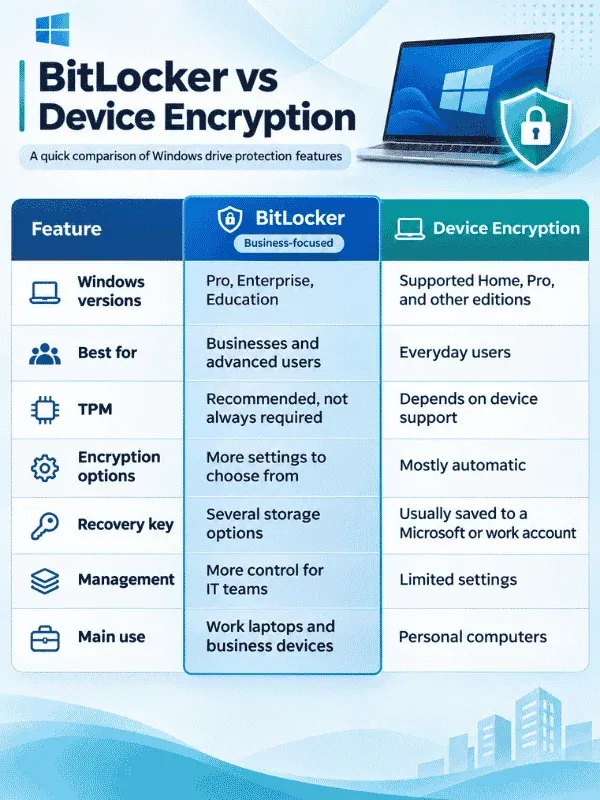
Both BitLocker and Device Encryption help keep your files safe on Windows computers. They work in a similar way, but there are a few differences.
BitLocker gives you more control over how your files are protected. Device Encryption is simpler and usually works automatically on supported computers.
Here is a quick comparison.
Which One Should You Use?
If you use your laptop for personal work, Device Encryption may be enough to keep your files safe.
But if you run a business or manage several computers, BitLocker is usually a better choice. It gives you more control over security settings and recovery keys.
Both can help protect your data if your laptop is lost or stolen.
How to Enable BitLocker on Windows
Turning on BitLocker is quite simple. You can do it yourself or let your company's IT team manage it.
Here are some common ways to enable BitLocker.
1. Through Windows Settings or Control Panel
This is the easiest way for most users.
- Open Control Panel.
- Go to System and Security.
- Click BitLocker Drive Encryption.
- Select Turn on BitLocker.
- Follow the steps and save your recovery key somewhere safe.
Windows will then start encrypting your drive.
2. Using Command Prompt or PowerShell
IT teams can use commands to check and manage BitLocker.
For example, this command shows whether your drives are encrypted:
manage-bde -status
Other commands can be used to turn on BitLocker and change its settings.
3. Through Group Policy
Businesses can use Group Policy to set BitLocker rules for several Windows computers.
This helps IT teams manage encryption settings without changing them on every computer.
4. Through MDM
A Mobile Device Management (MDM) solution can help businesses manage BitLocker settings across many Windows devices.
With a supported MDM tool, IT teams can apply encryption rules and check device security from one place.
This saves time and makes it easier to keep company laptops protected.
How Businesses Can Manage BitLocker Across Multiple Windows Devices
Managing BitLocker on one laptop is easy. But what if a business has 50 or 100 computers?
Checking every device one by one takes a lot of time. Some employees may forget to turn on BitLocker, while others may lose their recovery keys.
This can become a big problem, especially when company laptops contain important customer details and private files.
That's why businesses need a simpler way to manage their devices.
Manage Windows Devices With VantageMDM
VantageMDM helps IT teams manage Windows laptops and desktops from one place.
With centralised Windows device management, businesses can apply security settings and keep better track of their devices.
For BitLocker, IT teams should look for tools that help them:
- Apply encryption rules to company devices.
- Check which computers have encryption enabled.
- Keep recovery keys safe and easy for authorised staff to find.
- Maintain the same security settings across devices.
These features depend on what the device management software supports.
Businesses can also use Windows kiosk mode to limit shared computers to approved apps and websites.
This makes it easier for IT teams to manage devices and helps reduce the worry of leaving important company information unprotected.
BitLocker Best Practices for Businesses
BitLocker can provide strong protection, but simply switching it on is not enough.
Businesses should also follow a few security practices to make sure encrypted devices remain protected and recovery is possible when something goes wrong.
BitLocker Best Practices for Businesses
BitLocker helps keep your files safe, but you need to use it the right way. Even a small mistake can put important company data at risk.
Here are some simple tips to follow.
1. Keep Recovery Keys Safe
Always save your recovery keys in a safe place.
Your IT team should know where to find them if someone gets locked out of their computer.
2. Use TPM Whenever Possible
TPM helps protect the keys used by BitLocker.
If your computer supports TPM, use it for extra security.
3. Check BitLocker Regularly
Don't assume BitLocker is always working.
Check your company computers from time to time to make sure their drives are encrypted and protected.
4. Use Strong Security Methods
Some laptops have important business files that need extra protection.
Using a strong startup PIN with BitLocker can help keep these files safe.
5. Be Careful When Changing Hardware
Changing computer parts or certain settings may cause BitLocker to ask for a recovery key.
Make sure you have the key before making changes. No one wants to get locked out when they have important work to finish.
6. Keep Recovery Keys Private
Don't share recovery keys with everyone.
Avoid keeping them in public chats, shared files, or emails that are not secure. Only trusted staff should have access.
7. Manage Devices From One Place
Managing many computers one by one can be tiring.
A device management tool can help IT teams check security settings and manage all work computers from one place.
8. Use Other Security Tools
BitLocker cannot protect your computer from every danger.
Use strong passwords, antivirus software, and regular updates too.
These simple steps can help businesses avoid unneccessary problems and keep important files s
FAQs
What is BitLocker used for?
BitLocker is used to encrypt data stored on Windows drives. It helps protect files from unauthorised access, particularly when a laptop or desktop is lost, stolen, or accessed outside its normal Windows environment.
Is BitLocker available on Windows 11?
Yes. Full BitLocker Drive Encryption is available on Windows 11 Pro, Enterprise, and Education. Some Windows 11 Home devices also support Device Encryption, which uses BitLocker technology.
Is BitLocker enabled automatically?
BitLocker-based Device Encryption may be enabled automatically on compatible Windows computers. This depends on the Windows version, hardware, account configuration, and device security settings. Users can check their encryption status in Windows Settings or the BitLocker management interface.
Does BitLocker slow down a computer?
BitLocker may have a small effect on performance, especially during the initial encryption process. However, most modern computers with SSDs and suitable hardware experience little noticeable difference during everyday use.
What happens if I lose my BitLocker recovery key?
If your computer requires the recovery key and you cannot find it, you may lose access to the encrypted information. Check your Microsoft account or contact your organisation's IT administrator. If no valid unlocking or recovery method is available, the data may be permanently inaccessible.
What is the difference between BitLocker and Device Encryption?
Both use BitLocker encryption technology. Full BitLocker provides more advanced settings and administrative control, while Device Encryption offers a simpler way to protect supported Windows computers.
Can BitLocker work without TPM?
Yes. Full BitLocker can work without TPM on supported Windows editions using alternative startup authentication methods and the appropriate policy settings. However, TPM-based protection is recommended because it offers stronger security.
How can businesses manage BitLocker on multiple devices?
Businesses can use Group Policy, PowerShell, or supported MDM platforms to manage encryption across Windows devices. Centralised management can help IT teams apply security policies, review encryption status, and manage recovery procedures more efficiently.
Conclusion
Losing a computer is frustrating enough without having to worry about who might access the information stored on it.
For businesses, that worry can be even greater. A single laptop may hold customer records, private documents, and information that took years to collect.
BitLocker helps protect that data by encrypting Windows drives and preventing unauthorised offline access.
Understanding what BitLocker is and how BitLocker works is a useful first step towards better device security. However, businesses also need to think about recovery keys, authentication methods, and how encryption is managed across different computers.
For organisations with a growing number of Windows devices, centralised management through solutions such as VantageMDM can help maintain consistent device security policies and simplify everyday IT administration.
The goal is simple: keep important information protected, even when a device ends up in the wrong hands.